import matplotlib
if not hasattr(matplotlib.RcParams, "_get"):
    matplotlib.RcParams._get = dict.get
pyquist#
pyquist provides basic utilities for low-level computer music programming in Python and NumPy.
pyquist is designed for learning and is the teaching library for CMU’s 15-322 Intro to Computer Music. Its primary purpose is to provide a barebones foundation for working with audio in Python, e.g., allocating sample buffers, audio file decoding and playback. Accordingly, it intentionally lacks a lot of functionality found in full-fledged computer music programming frameworks, such as a rich collection of unit generators.
Hello, pyquist!#
A tour of the core library. We’ll synthesize sound from scratch, load and transform audio, build scores and instruments, and render a MIDI file. Realtime audio is covered separately.
Run any cell below right here in your browser with its Run button. You can also open the original notebook in Colab.
# Setup: imports used by every cell below. Run this cell first.
import numpy as np
import pyquist as pq
1. Audio: a numpy array of samples#
pq.Audio is a thin wrapper around a 2D numpy.ndarray of float32 samples shaped (num_samples, num_channels), plus a sample_rate in Hz. Anything you can do to a numpy array, you can do to audio.samples.
# 1 second of a 440 Hz sine wave (concert A).
sr = 44100
t = np.arange(sr) / sr
audio = pq.Audio(0.5 * np.sin(2 * np.pi * 440 * t), sample_rate=sr)

print(
    f"shape={audio.shape}, sample_rate={audio.sample_rate}, peak={audio.peak_amplitude:.3f}"
)
pq.play(audio)
shape=(44100, 1), sample_rate=44100, peak=0.500
2. Loading audio#
pq.Audio.from_file reads from disk and pq.Audio.from_url fetches from the web (both delegate to libsndfile via the soundfile package).
from pyquist.paths import TEST_DATA_DIR

riff = pq.Audio.from_file(
    TEST_DATA_DIR / "388954__fullmetaljedi__blues-riff-in-g-nylon.wav"
)
print(riff)
pq.play(riff)
Audio(num_samples=216873, num_channels=2, sample_rate=48000)
3. Visualization#
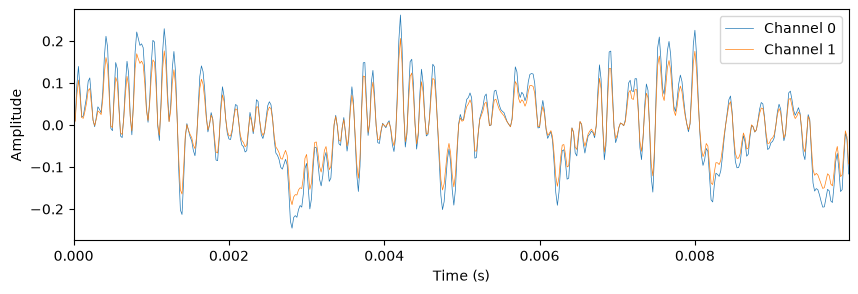
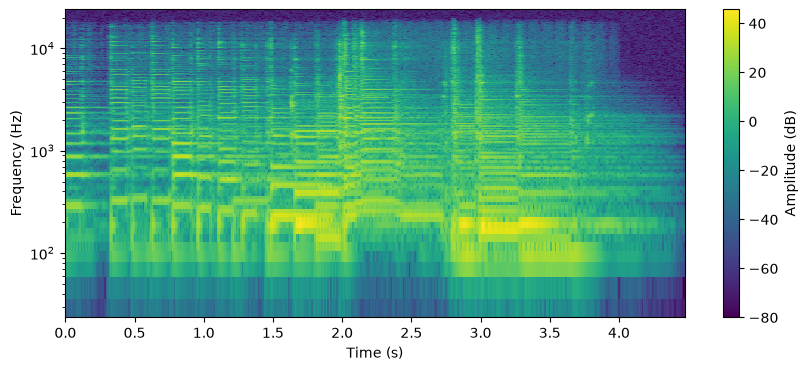
pq.plot shows the waveform; pq.plot_freq plots the FFT magnitude spectrum; pq.plot_spec plots a spectrogram. All three accept offset / duration to zoom into a region.
# Zoom into 10 ms
pq.plot(riff, duration=0.01)
pq.plot_freq(riff, duration=0.01)
pq.plot_spec(riff)
<Axes: xlabel='Time (s)', ylabel='Frequency (Hz)'>

4. Transforming audio#
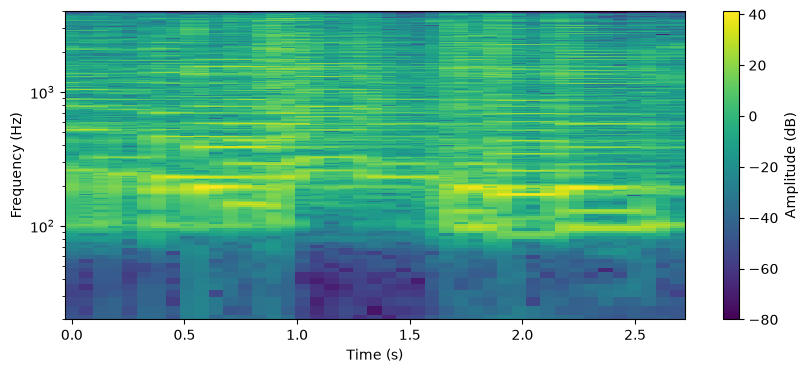
A handful of Audio methods cover the common edits — slice in time (segment), change sample rate (resample), mix down (as_mono, as_stereo), level (normalize, clip). All return new Audio objects.
# Pull out a 3-second clip starting 5 seconds in, then downsample to
# telephone quality.
clip = riff.as_mono().segment(offset=1.0, duration=3.0).resample(8000)
print(f"{clip.duration:.2f}s at {clip.sample_rate} Hz")
pq.plot_spec(clip)
pq.play(clip)
3.00s at 8000 Hz
5. Scores: musical events → audio#
A Score is a list of events, each a (time, kwargs) tuple: a time (in seconds, or in beats if you supply a metronome) and a kwargs dict. (Internally each pair is an Event, but Score converts plain tuples for you.) The instrument — a function called as instrument(**event.kwargs) — turns those kwargs into audio. An instrument just declares the kwargs it cares about and absorbs the rest with **kwargs.
The library deliberately leaves instruments to you. Here’s a simple one that turns each event into a pure sine tone with a quick decay.
from pyquist.helper import pitch_to_frequency
from pyquist.score import BasicMetronome, Score


def sine_instrument(pitch, duration, **kwargs):
    sr = 44100
    t = np.arange(int(duration * sr)) / sr
    freq = pitch_to_frequency(pitch)
    samples = 0.3 * np.sin(2 * np.pi * freq * t) * np.exp(-3 * t)
    return pq.Audio(samples, sample_rate=sr)


# Twinkle Twinkle, Little Star: each (beat, {kwargs}) tuple is one note.
# Score coerces these tuples into Events automatically.
twinkle = Score(
    [
        (0, {"pitch": 60, "duration": 0.5}),  # C
        (1, {"pitch": 60, "duration": 0.5}),
        (2, {"pitch": 67, "duration": 0.5}),  # G
        (3, {"pitch": 67, "duration": 0.5}),
        (4, {"pitch": 69, "duration": 0.5}),  # A
        (5, {"pitch": 69, "duration": 0.5}),
        (6, {"pitch": 67, "duration": 1.0}),  # G
    ]
)

# 120 BPM → 1 beat = 0.5 s.
pq.play(twinkle.render(sine_instrument, metronome=BasicMetronome(bpm=120)))
6. MIDI files#
Score.from_midi parses a MIDI file into a (score, metronome) pair. Each note becomes an Event whose time is in MIDI ticks and whose kwargs includes pitch, velocity, duration (seconds), program, and is_drum.
# A copy of Ravel's Boléro (public domain) is bundled with pyquist for testing.
from pyquist.paths import TEST_DATA_DIR

score, metronome = pq.Score.from_midi(TEST_DATA_DIR / "ravel_bolero.mid")
total_seconds = metronome.tick_to_seconds(score.end_time)
print(f"{len(score)} notes, {total_seconds:.0f}s long")


# Simple "meta instrument": noise for drum events, sine for pitched ones.
def midi_instrument(is_drum, duration, **kwargs):
    if is_drum:
        sr = 44100
        n = int(duration * sr)
        envelope = np.exp(-30 * np.arange(n) / sr)
        samples = 0.1 * np.random.randn(n).astype(np.float32) * envelope
        return pq.Audio(samples, sample_rate=sr)
    return sine_instrument(duration=duration, **kwargs)


# Render a 20-second clip starting a few seconds in.
clip = score.segment(
    offset=metronome.seconds_to_tick(11),
    duration=metronome.seconds_to_tick(20),
)
pq.play(clip.render(midi_instrument, metronome=metronome))
33249 notes, 958s long
Installation#
Requires Python 3.10 or later.
macOS#
brew install python@3.10          # or 3.11, 3.12, 3.13
python3.10 -m venv .venv
source .venv/bin/activate
pip install --upgrade pyquist
If pq.play(...) is silent, give Terminal (or your IDE) microphone/audio access in System Settings → Privacy & Security → Microphone.
Linux#
Install Python and the PortAudio system library that sounddevice wraps:
# Debian / Ubuntu
sudo apt install python3 python3-venv libportaudio2

# Fedora
sudo dnf install python3 python3-virtualenv portaudio

python3 -m venv .venv
source .venv/bin/activate
pip install --upgrade pyquist
Windows#
Install Python (3.10 or later, with “Add Python to PATH” checked), then open Command Prompt:
python -m venv .venv
.venv\Scripts\activate.bat
pip install --upgrade pyquist
From source#
For hacking on pyquist itself:
git clone https://github.com/gclef-cmu/pyquist.git
cd pyquist
python3 -m venv .venv
source .venv/bin/activate
pip install -e ".[dev,notebook]"
pre-commit install
Pick default audio devices#
Once installed, the pyquist CLI (also available as pq) lets you choose persistent default input/output devices (handy for laptops with multiple interfaces):
pyquist devices
pyquist play test
Run notebooks#
pip install jupyter ipykernel ipywidgets
python -m ipykernel install --user --name=pyquist --display-name "Pyquist"
cd examples
jupyter notebook
Then open HelloPyquist.ipynb and select the Pyquist kernel.
Acknowledgements#
Inspired in part by: