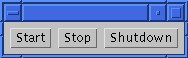
Clicking "Start" will attempt to launch the system.
To start a PB3A system, go to the "Launch" menu, then select "Launch".
That will bring up the dialog box pictured below. Clicking "Start"
will send the PB3A system to the System Programs to be launched.
Clicking "Start" will attempt to launch the system.
The system was not able to be launched. The reason is that the
bottom input to PBAORGate_5 is unconnected. The status window should show
an error like this.

My status window looked like this when the launch failed.
To fix the problem, connect PBAClock1's output to PBAORGate_5's
unconnected input port. The final layout should look like this.
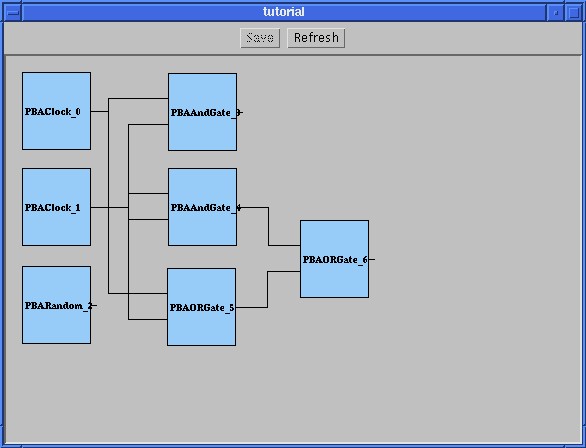
This is what my system looked like before successfully launching it.
Now, launch the system using the routine I described above.
Notice that nothing is happening. This is because we have no way of
viewing the results or outputs of the system. To view these results,
let's put some PBAPrint modules into the system. To edit a running
system, first the system must be halted. Click "Shutdown" from this
pop-up menu.
Clicking "Shutdown" allows me to edit a system that was executing.
Add a PBAPrint to the system. PBAPrint simply prints whatever
data is on its input port. The input port of PBAPrint is a Java
Object. Objects are the superclass of virtually all classes in Java.
So, PB3A will allow PBAPrint to accept anything as input. Connect the
output of PBAORGate_6 to the PBAPrint_7. Here's what my system looked
like when I did this.
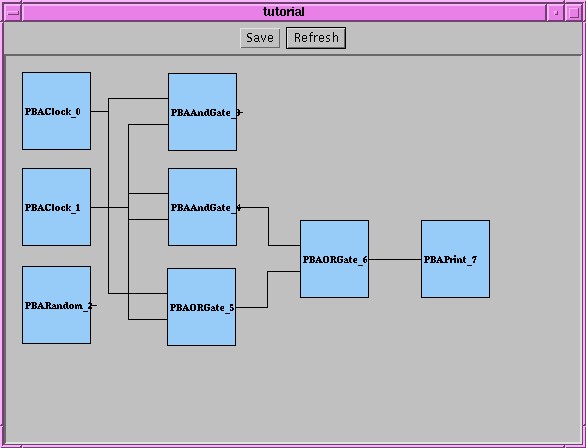
Here's my new and improved system with a PBAPrint added to it.
Now, launch the system. The output of PBAPrint_7 will appear in
the Net Controller text area. The output of my system looked like
this.
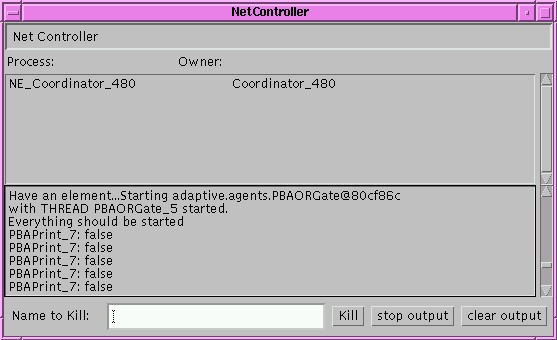
This is the output of my Net Controller.
Editing a PB3A System
Back to the Beginner's Guide.