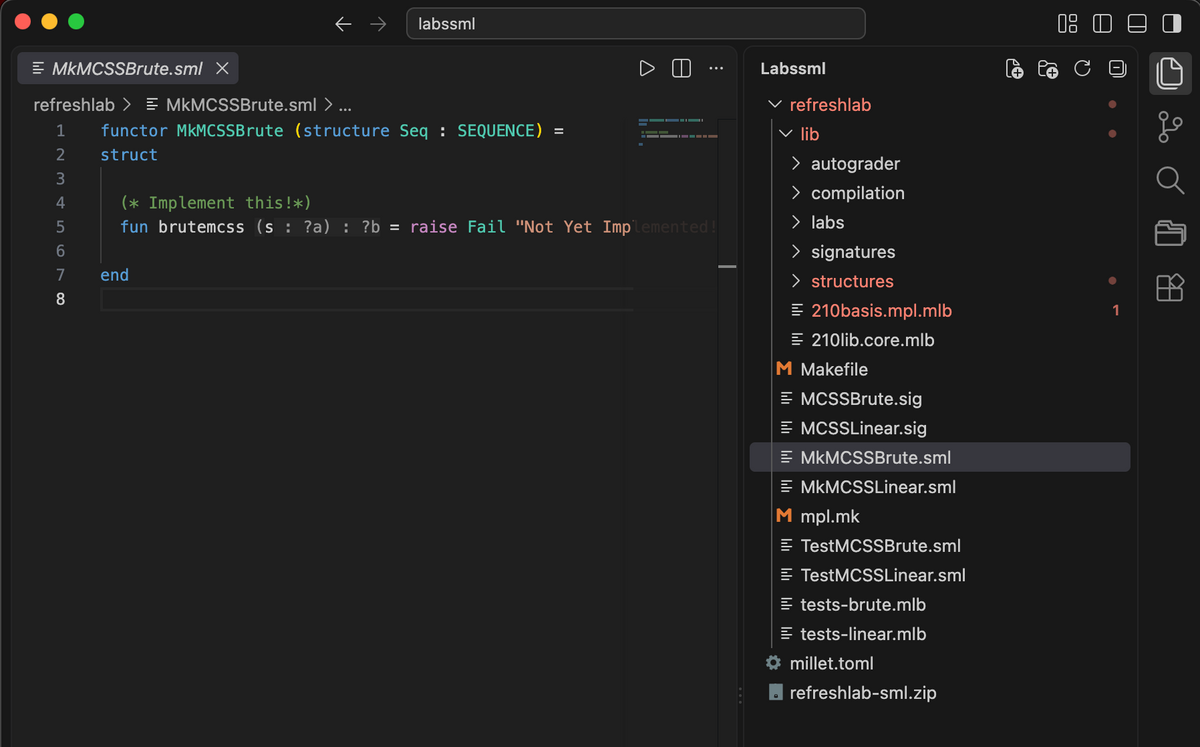
labssml, and the root folder is actually named differently — that's
just how I organize my files. You can copy it as you wish or use your own
system.Before you do anything, please make sure you have read Setup and Installation. For most students, it is probably easiest to work on the cluster and follow the instructions there. This page is for those who want to work locally, which I personally preferred when I took 210.
Note: I personally use a MacBook + VSCode, and I work in a VSCode workspace where the root folder of the workspace (bottom-most folder in your sidebar) is the folder containing your programming lab handouts.
And as usual, please come to OH or ask questions on Ed if you have any trouble.
I think it makes the most sense to have a folder for all your 210 labs. For me, I will assume that this folder is
~/Developer/15210/labs~/Downloads/ folder to your labs folder~/Developer/15210/labs/refreshlab)I personally use VSCode, which has a nice workspaces feature. To make a workspace, open a new VSCode window (Cmd + Shift + N) and then in the sidebar, click Open Folder, and open your lab root folder.
Then, go to the top bar of your MacBook, click File > Save Workspace As... and create
a file named {SOME FILENAME YOU CHOOSE}.code-workspace that you can just
click on and it'll open VSCode with your 210 lab workspace (with extensions included) all
set up! So the file tree for your workspace should be like:
labs/
├── refreshlab/
├── futurelab_1/
.
└── futurelab_n/
As Prof. Anderson has mentioned, this semester we will be using MaPLe instead of SML/NJ
so that our SML code is actually parallel. Unfortunately, this means that you
cannot just re-use the same stuff you did in 15-150. Fortunately I've gone through the
pain of setting up and completing refreshlab, so you can too.
From mpl-switch. The route the
setup page recommends is
mpl-switch.
From source. Following MaPLe's manual instructions:
~/ (takes awhile).mpl (just a preference because I don't like
clogging up my root dir)brew install mlton make gmp was sufficientcd .mpl and then run
gmake WITH_GMP_DIR=$(brew --prefix gmp)export PATH=$PATH:/Users/{YOUR USERNAME HERE}/.mpl/build/bin -
noting that ~/ is sugar for /Users/{YOUR USERNAME HERE} -
to your .zshrc (or .bashrc, I assume that anyone using any other
shell is enough of a computer nerd to figure out how to add to the PATH env var)source .zshrc (again, or .bashrc) to refresh your shell
config fileWe want syntax highlighting + type hints to make programming in SML easier. If you ever find yourself writing SML with no syntax highlighting or LSP to help you, (1) god save you and (2) please don't do this just come to OH and get this resolved.
In your VSCode workspace, recall the file
tree above. Now we're going to add a millet.toml file.
labs/
├── refreshlab/
├── futurelab_1/
.
├── futurelab_n/
└── millet.toml
millet.toml
I have taken 15-150, 15-210, and 15-312 all in SML. So my millet.toml has
some things commented out that were useful in one class but not another. If you are
curious as to why I set certain error codes to ignore/warning/error, consult the
Millet
documentation.
Here is a working .toml file I have. It works on my machine :-)
version = 1
[workspace]
# root = "**/sources.cm" # SML/NJ: search for a sources.cm file at any level
root = "**/*.mlb" # MLton/MaPLe: search for *.mlb files at any level

[diagnostics]
4014.severity = "ignore"  # ignore unnecessary parentheses error
5029.severity = "ignore"  # ignore unused variable error
5033.severity = "warning" # ignore unnecessary parentheses
5035.severity = "warning" # silly usages of the inline append `@` operator
5036.severity = "ignore"  # ignore casing on a boolean, which you shouldn't be doing anyways since casing on true or false is just an if statement

5030.severity = "error"
5034.severity = "error"

# [stylistic-issues] # NOTE: can uncomment these if you want
# 4037.severity = "ignore" # .sig and fun files usually contain exactly one signature or functor
# 4035.severity = "ignore" # ignore error when you write empty record/tuple as `{}` instead of `()`
# 5043.severity = "ignore" # binding while shadowing an existing variable name
# 5042.severity = "ignore" # ignore eta-expansion errors, f ~ fn x => f x
# 4015.severity = "ignore" # overly complex boolean expression
# 4033.severity = "ignore" # overly complex let expression without declarations in let (i.e., unnecessary let)
# 5037.severity = "ignore" # applying function literal to an argument
Open the Command Palette (Cmd + Shift + P) and go to Developer: Reload Window. Everything should be good now!
labssml, and the root folder is actually named differently — that's
just how I organize my files. You can copy it as you wish or use your own
system.