
[Home] [News] [Contextual Features] [Lightweight Version] [Full Version]
Full Version Installation and User's Guide
The full version of eMoose allows users to benefit from the episodic and contextual features of eMoose either without any investment (applying to he user's existing //TODO comments, and to directives that we have annotated in several APIs and which can be downloaded from our server), or with an investment in creating observations. Objective observations are created automatically from monitored events. Subjective observations can be created with special popups or by tagging text in code comments using TagSEA The full version allows you to populate databases, facilitating sharing with users of your code and APIs.
At present, this version is not officially supported and is meant for advanced users. Use the lightweight version otherwise. Contact Uri if you would like to try out the full version.
eMoose is a research tool and is therefore focused on functionality, not on maximal efficiency. Since Eclipse is slow in its own right, using eMoose is not recommended if your Eclipse performance is already sluggish. We would recommend using a machine with at least two CPU cores and 2GB of RAM. It is also (generally) a good idea to increase the maximal heap space available to Eclipse by modifying its eclipse.ini file.
Also note that at present the directives for APIs are loaded over the network every time that Eclipse is started (to ensure proper updates, as coverage increases over time). eMoose should not be used offine, unless you wish to benefit from the support for //TODO comments.
eMoose has been compiled against Java 6 (except Mac OS X where it is compiled against Java 5) and the official 3.4.1 release of Eclipse. No guarantees are made about earlier versions or later versions, though we will regularly update eMoose for the latest version. Check this site regularly for updates on compatibility with upcoming 3.5 milestones. Because of these requirements, the default distribution is intended for PCs running Windows or Linux. There is a separate update site for the Mac OS X version, which is compiled against JDK5 since Eclipse does not support Java 6.
eMoose is used against a server. There must be a unique server process for your specific user and project. Unless you are installing your own eMoose server and database, you need to get in contact with Uri to set one up.
The standard mechanism for installing eMoose is using the official update site. At present there is some problem with updates, so eMoose would need to be completely uninstalled before upgrading to later versions; see instructions below. See instructions later for details.
Start Eclipse and make sure no previous eMoose versions are installed.
Go to Help -> Software Updates in the main menu
Change the tab to available software
Click Add Site
For a PC, use the following site:
http://www.cs.cmu.edu/~udekel/emoose/dist/updatesite/
For a Mac, use the following site:
http://www.cs.cmu.edu/~udekel/emoose/dist/updatesite_mac/
An entry for the update site will appear, listing eMoose features:

For the lightweight version, you must select all the features but the lightweight client, and click install. These include:
"eMoose Third Party Libraries" - Archives of utilities used by eMoose, such as apache-commons and the JMS API.
"eMoose Common Functionality Feature" - The core of eMoose which is shared by all versions of the tool
"eMoose Full client for Eclipse" - The actual client program specific to the full version
"eMoose Default Prepackaged Observations Repositories" - Provides a list of annotated APIs.
"eMoose version of TagSEA" and "eMoose TagSEA integration feature" - Provides a list of annotated APIs for integration.
Let Eclipse restart.
If you ever want to uninstall eMoose, Go to Help -> Software Updates in the main menu, go to the Installed Software tab, select the above four features for uninstallation, uninstall and restart Eclipse.
The first time that you run eMoose, you will need to perform an initial configuration.
The first popup simply introduces eMoose

Next, you are instructed to create a user id, typically a UNIX style userid. The user id is particularly important if multiple eMoose users participate in the same project, since it avoids mixing everyone's activity logs and ensures accountability. The rating system also depends on the availability of a user id.

Next, you are instructed to enter a recording tag. Again, it is better to enter a string with no whitespace. The recording tag helps identify projects. You can use the same eMoose server (although this is not recommended) to track information related to multiple projects. All users in the same project must use the same exact tag or they would not be able to see each other's materials.

Next, eMoose asks for the ActiveMQ (JMS implementation) broker address. This is a process that maintains the message queues used by the eMoose client to communicate with the server, which may be hidden at a different location. Unless you are running your own eMoose server locally or on another machine, it is likely that you are using a server at CMU and should choose the default address in cloud. Note that port 61616 is standard for JMS so make sure it is not blocked by your firewall!

The next dialog will ask for the queue prefix. The eMoose client communicates with the eMoose server via several message queues. Since there is a unique server process for each individual user of the full version of eMoose, these queues are prefixed. by some string, which you shall now enter as instructed in the information about your server. Unless told otherwise, just use the uppercase version of your user id.

You should now be fully configured for using eMoose. However, you will also be asked a series of questions about monitoring your usage of the contextual features for research purposes. The data involves what calls are decorated at each point, and whether you hover over any of these calls. If you are using confidential programs, do not allow monitoring. If you are working on an open-source project or a general program, please select yes if you are willing to have things captured. You will then be asked to provide a userid (does not have to be real, but should be unique) and a project name (against, just has to be unique).
For now please select no reporting!
If you agree to monitoring, you will be asked to provide a broker and a queue for the reporting messages. Keep the defaults.

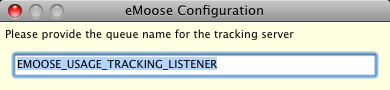
Finally, you are going to get a debriefing message. eMoose should be ready for use.

As with the lightweight version, you have the option of loading directives from our repositories. Please see that documentation.
The full version offers the same contextual features as the lightweight version. However, it offers additional mediums
[DETAILS]
[todo]
[todo]
[todo]