
| Remote Access to iSite |
iSite has been designed with several useful features for users who wish to access patient exams from a remote site. These features, compression and image-quality adjustments, will allow you to compensate for the slower speed of your remote connection, thereby facilitating access to iSite from your home or off-site office.
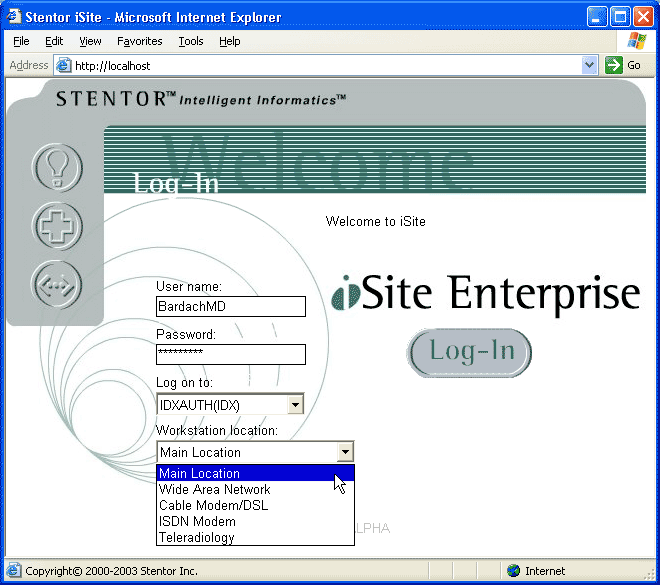
To utilize iSite's remote-access features, your connection-method must be selected when you first login to iSite. Before clicking the "Log-In" button, make sure to set the appropriate connection type from the Select Connection Speed pull-down menu. The default setting, "Main Location" is for use when you are not connecting to your institution's network from an off-site location.
If you chose any other option than "Main Location" iSite will engage its Remote Access mode. The following dialog will be displayed:

Immediately after selecting a connection speed other than "Internal Network," you will be presented with a pop-up dialog containing information about compression. You must be aware of the amount of compression in use when you interact with images and series in iSite. In particular, as discussed in the section titled Region of Interest, Hounsfield unit measurements will NOT be correct unless the image you are measuring is at full fidelity.
Teleradiology Mode is the lowest connection speed available and is designed to be used in instances where a user is connecting to iSite Enterprise over a telephone line with a 56K modem. This mode uses the highest amount of compression in order to compensate for the extremely poor data transfer rate often experienced over a telephone line.
To engage Teleradiology Mode, choose the "Teleradiology" option from the Connection Speed drop-down menu when you log in to iSite Enterprise. In Teleradiology Mode, iSite displays several unique messages and provides controls not available in other connection speed modes. When you load an exam in this mode, iSite Enterprise will display the progress of the exam loading, as seen below.

If you wish to cancel this process at any time, click the "Cancel" button. The following message will be displayed

If you have selected any connection speed other than "Internal Network" when logging in to iSite, the quality of the image you are viewing will be displayed by an pie-diagram icon located in the lower right hand corner of the image. The icon represents the degree of compression in use with that particular image. Shown below are the seven grades of compression.
| Icon | Compression Level |
 |
Grade one, highest level of compression. This is the initial compression level of images viewed when logged in with the "ISDN Modem" setting. |
 |
Grade two. |
 |
Grade three. This is the initial compression level of images viewed when logged in with the "Cable-Modem/DSL" setting. |
 |
Grade four. |
 |
Grade five. This is the initial compression level of images viewed when logged in with the "Wide Area Network" setting. |
 |
Grade six. |
 |
Grade seven, no compression (full fidelity). This is the initial and constant compression level of images viewed when logged in with the "Internal Network" setting. |
 |
Intermediate draw symbol. |
There are two ways to improve image quality, both available from the pop-up menu. To improve image quality in regular intervals, select "Improve Image" from the pop-up menu by right-clicking on the image whose quality you wish to improve. To improve image quality to full fidelity in one step, select "Full Fidelity" from the pop-up menu by right-clicking the image whose quality you wish to improve.

