| Logging in to iSite |
Once your system administrator has established your iSite username and password, you will be able to access iSite by pointing your Internet Explorer to the iSite Server’s address. This address will be provided to you by your system administrator. Your iSite System Administrator will also tell you which authentication system you should log in to.
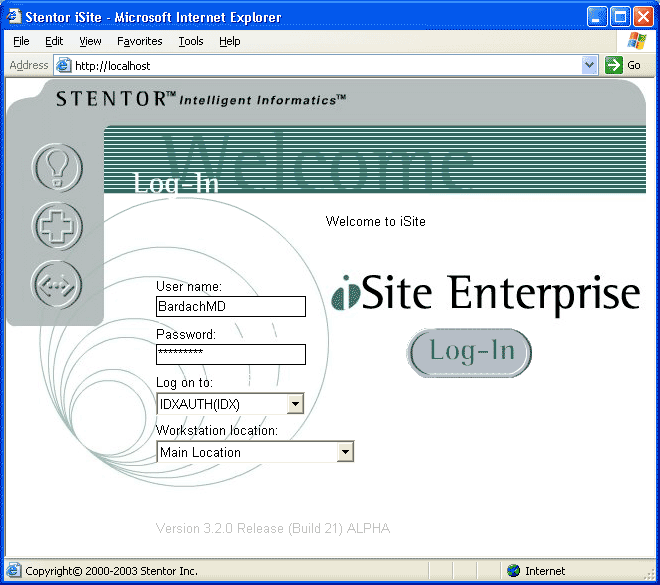
When you point your browser to the iSite Server, the first screen you will see is the iSite Enterprise Login Screen, as seen below.
Enter your user name and password as provided to you by your System Administrator and then select the appropriate authentication scheme in the "Logon To" field.
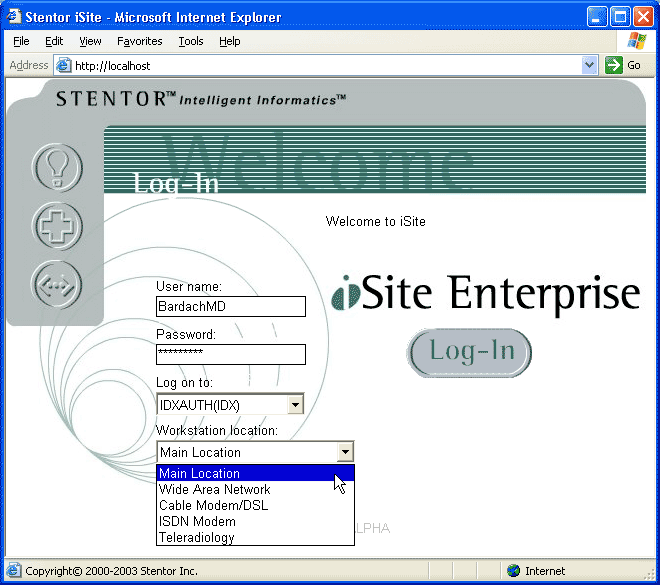
As seen below, select the Workstation Location that is most appropriate for the location you are at. If you are working from inside your institution, leave the default setting "Main Location". The other options (Wide Area Network, DSL/Cable Modem, ISDN/Modem, Teleradiology) dictate how iSite Enterprise will handle image management. For your convenience, please set this option accurately.
For more information on connecting to iSite remotely, please see the Remote Access to iSite section of this manual.
When you log in using your iSite username and password, iSite will load your specific controls and preferences. Please be aware that because iSite is customized on a user by user basis, your interaction with the program (the patients you have access to, the tools available to you etc.) may be different from that of other users.
Please note that iSite Enterprise requires a Monitor Color setting of 24 bits or higher. If you are using a lower bit-rate, iSite Enterprise will display the following message:

To remedy this problem, right-click on your desktop and select "Properties". In the following dialog, click the "Settings" tab and then set the "Colors" section pull-down menu to 24 bits or higher. Click the "Apply" button and you will be shown the following message:

Click "OK" to apply the new settings.
When you have successfully logged in, your name will be displayed in the upper left hand corner of the iSite Enterprise screen, as seen below.

