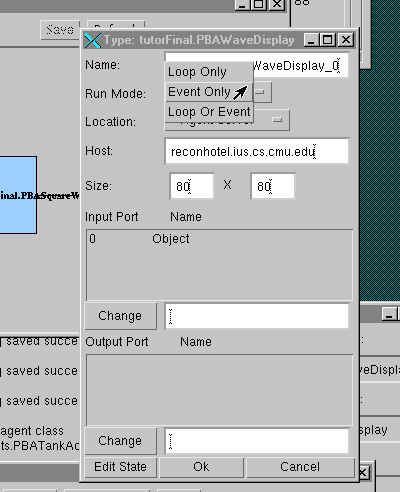
Now we'll look a little more closely at the display agent, PBAWaveDisplay. As it is right now, it runs in its own thread that polls its input port repeatedly to detect changes in its input. To make sure it doesn't miss any transitions, it has to run much faster that the agent providing the agent. This is clearly not the most efficient way of doing things. It would be better if its input port told it when it changed and woke the agent up. This is what PB3A port events are for.
To enable an agent to use events, there are two methods we
must add. The first is runEvent().
It is analogous to runLoop() and is
executed every time one of the input ports changes.
Additionally it is passed a TriggerEvent object that lists which ports
have changed.
side note: Inputs that take their values from output ports on the same agent will always receive events regarding those ports in the same event; inputs that receive values from different agent will receive events regarding those ports in separate events. Therefore, if it is necessary to wait for two different ports to make a change, it is best to use booleans to record whether those ports have changed or even build a small state machine.
The second method we need to add is used to allow the user to
select between running in loop-based mode, event-based mode, or a combination
of the two. The getModuleModeCapability()
method returns a constant indicating which of these modes are possible
for this agent. The possible choices are
EVENT_ONLY, LOOP_ONLY, and EVENT_OR_LOOP.
We'll use EVENT_OR_LOOP so we can easily switch between the two
modes to compare how they perform.
Here is the code for the additional methods in PBAWaveDisplay:
  public int getModuleModeCapability(){
      return EVENT_OR_LOOP;
  }

  public void runEvent(TriggerEvent te){
      int[] changedPorts=te.getPortNumbers();
	  if (changedPorts.length>0){//doublecheck that a change has occurred
	  Boolean input=(Boolean)getInput(0);
	  if (input.booleanValue()){
	      display.update(1.0f);
	  }
	  else{
	      display.update(0.0f);
	  }
      }
  }
Recompile PBAWaveDisplay. Go to waveform.cfg in Module Manager. Set PBASquareWave to produce a 10Hz wave. Save and execute.
Notice that since this PBAWaveDisplay is
still running in loop mode at a frequency less than the Nyquist rate for this
wave, it is not displaying the wave form correctly.
Changing to event mode will allow PBAWaveDisplay to track the
changes in the waveform as they occur (at least as much as the system load on
the computer will allow us, but at 10Hz this shouldn't be a problem).Bring up
the properties window for PBAWaveDisplay and select EVENT_ONLY.
Save the configuration and run it.
Notice that the waveform is now displayed
correctly.
| Prev | Next |
Copyright 2000, Carnegie Mellon University
This page written by Jonathan Jackson
Last modified: Thu May 18 19:13:27 EDT 2000