1: The Java Look and Feel
As the Java platform has matured, designers and developers have recognized the need for consistent, compatible, and easy-to-use Java applications. The Java look and feel meets that need by providing a distinctive platform-independent appearance and standard behavior. The use of this single look and feel reduces design and development time and lowers training and documentation costs for all users.
This book sets standards for the use of the Java look and feel. By following these guidelines, you can create Java applications that effectively support all users worldwide, including those with physical and cognitive limitations.
Fundamentals of the Java Look and Feel
The Java look and feel is the default interface for applications built with the JFC. The Java look and feel is designed for cross-platform use and can provide:
- Consistency in the appearance and behavior of
common design elements
- Compatibility with industry-standard components and interaction
styles
- Aesthetic appeal that does not distract from application content
Three distinctive visual elements are the hallmarks of the Java look and feel components: the flush 3D style, the drag texture, and the color model.
In the Java look and feel, component surfaces with beveled edges appear to be at the same level as the surrounding canvas. This "flush 3D" style is illustrated in the following figure.
Figure 1 Consistent Use of the Flush 3D Style
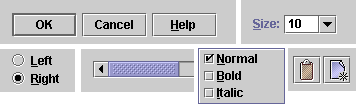
The clean, modern appearance reduces the visual noise associated with beveled edges. Flush 3D components fit in with a variety of applications and operating systems. For details on the flush 3D style, see Producing the Flush 3D Effect.
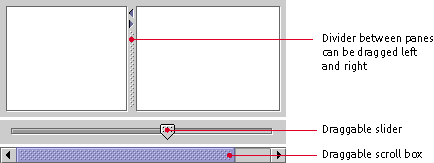
A textured pattern, used throughout the Java look and feel, indicates items that users can drag. Such an indication cues cross-platform users in a reliable way. The following figure demonstrates several uses of the drag texture.
Figure 2 Consistent Use of the Drag Texture
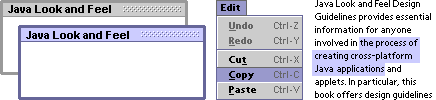
A simple and flexible color model ensures compatibility with platforms and devices capable of displaying quite different color depths. The default colors provide an aesthetically pleasing and comfortable scheme for interface elements, as shown in the following figure. For more on the Java look and feel default color theme, see Themes.
Figure 3 Consistent Use of Color Across Design Elements
2: The Java Foundation Classes
This book assumes that you are designing software based on the Java Foundation Classes (JFC) and utilizing the Java look and feel. This chapter provides an overview of that technology: the JavaTM 2 SDK (software development kit), the user interface components of the Java Foundation Classes, the pluggable look and feel architecture, and available look and feel designs.
Java 2 Software Development Kit
The APIs and tools that developers need to write, compile, debug, and run Java applications are included in the Java 2 SDK.
The guidelines in this book pertain to GUI applications built with the Java 2 SDK, Standard Edition, v. 1.3 (J2SE), and the Java 2 SDK, Enterprise Edition, v. 1.3 (J2EE), (both referred to hereafter as "Java 2 SDK"). The guidelines do not apply to applications built with the Java 2 SDK, Micro Edition.
Java Foundation Classes
The JFC includes the Swing classes, which define a complete set of GUI components for JFC applications. An extension to the original Abstract Window Toolkit (AWT), the JFC includes the Swing classes, pluggable look and feel designs, and the Java Accessibility API, which are all implemented without native code (code that refers to the functions of a specific operating system or is compiled for a specific processor). The JFC components include windows and frames, panels and panes, dialog boxes, menus and toolbars, buttons, sliders, combo boxes, text components, tables, list components, and trees.
All the components have look and feel designs that you can specify. The cross-platform, default look and feel is the Java look and feel. For details on the design principles and visual elements underlying the Java look and feel, see Chapter 1.
 In
code, the Java look and feel is referred to as "Metal."
In
code, the Java look and feel is referred to as "Metal."
The Java 2 SDK contains the AWT, the class library that provides the standard application programming interfaces for building GUIs for Java programs.
In the Java 2 SDK, the JFC also includes the Java 2D API, drag and drop, and other enhancements. The Java 2D API provides an advanced two-dimensional imaging model for complex shapes, text, and images. Features include enhanced font and color support and a single, comprehensive rendering model.
Support for Accessibility
Several features of the Java 2 SDK support people with special needs: the Java Accessibility API, the Java Accessibility Utilities, keyboard navigation, mnemonics, keyboard shortcuts (also called "accelerators"), customizable colors and fonts, and dynamic GUI layout.
The Java Accessibility API provides ways for an assistive technology to interact and communicate with JFC components. A Java application that fully supports the Java Accessibility API is compatible with technologies such as screen readers and screen magnifiers.
A separate set of utility classes, Java Accessibility Utilities, provides support in locating the objects that implement the Java Accessibility API. (These utilities are necessary for developers who develop only assistive technologies, not mainstream applications.)
A pluggable look and feel architecture is used to build both visual and nonvisual designs, such as audio and tactile user interfaces. For more on the pluggable look and feel, see Pluggable Look and Feel Architecture.
Keyboard navigation enables users to use the keyboard to move between components, open menus, highlight text, and so on. This support makes an application accessible to people who find it difficult or impossible to use a mouse. For details on keyboard operations, see Appendix A.
Mnemonics show users which key to press (in conjunction with the Alt key) in order to activate a command or navigate to a component. (For details on mnemonics, see Mnemonics.)
Keyboard shortcuts are keystroke combinations (usually a modifier key and a character key, like Control-C) that activate menu items from the keyboard even if the relevant menu is not currently displayed. (For more on keyboard shortcuts, see Keyboard Shortcuts.)
Support for Internationalization
The Java 2 SDK provides internationalized text handling and resource bundles. Text handling features include support for the bidirectional display of text lines--important for displaying documents that mix languages with a left-to-right text direction (for instance, English, German, or Japanese) and languages with a right-to-left direction (for instance, Arabic or Hebrew).
The Java 2 SDK also provides resource bundles, locale-sensitive sorting, and support for localized numbers, dates, times, and messages.
|
Java Look and Feel
Design Guidelines, second edition. |



