Capturing Images
- Create a directory to hold the images you'll be storing.
- If the Raw Cam viewer is currently running, deactivate it by
clicking on the ControllerGUI's Raw Cam button.
- Double click on the "Take Snapshots" script item to run the script.
- Open the Raw Cam viewer.
- If you're going to use the EasierTrain tool (recommended), skip
this step, but for EasyTrain, change the display mode from RGB to YUV
by clicking on the YUV button in the Raw Cam window. This will make
all the colors look funny, but turning off RGB conversion provides
more accurate color data for constructing the threshold file, since
the robot camera sends YUV images.
- Use the Head Controller to point the camera at your sample
objects.
- Click the Freeze Frame button. The button below should change
its name from "Save Image Sequence" to "Save Image". This is very
important: if you don't freeze the frame, you'll end up storing a
whole sequence of images, which will fill the directory with lots of
files.
- Click the Save Image button. Store the image in the directory
you created. You can use any name you like, but the extension should
be ".PNG". Do not use ".JPG" because JPEG compression will introduce
undesirable artifacts.
- Click the Unfreeze button, move the camera or the objects, and
repeat the above two steps to freeze the frame again and take your
next image. Repeat as desired.
- Before shutting down, take a look at the images you stored. On
Linux you can do this with a program such as "display" or "gimp". On
Windows machines or Macs, go to the folder and double click on the
filenames.
|

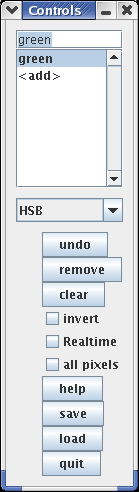
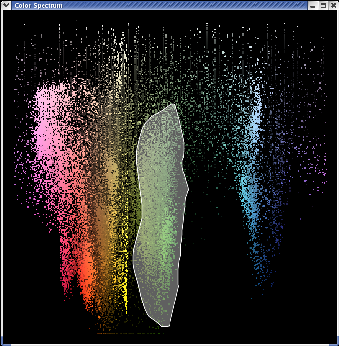

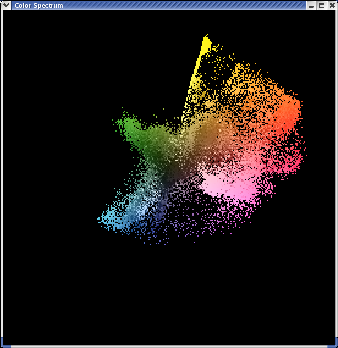 Using other color spaces: The Color Spectrum window normally
displays data in HSB (Hue, Saturation, and Brightness) space, but you
can use other color spaces if you prefer. The available choices are:
YUV, HSB, rg, xy, and Lab. For a little more information about these spaces,
see the help file (click on the Help button in the Control window); for a lot
more info, see the FAQ by Charles Poynton below.
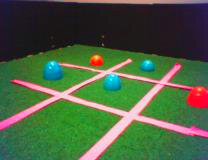
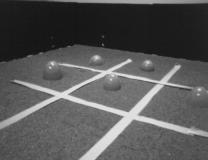
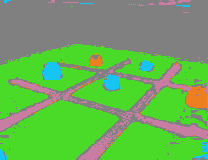
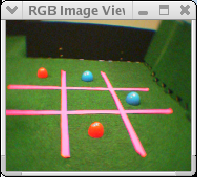
At right are the pixels from the sample images we used before, but
redisplayed in YUV space.
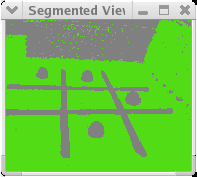
You can do color segmentation in any color space, but EasyTrain cannot
translate the polygons you draw in one color space into another space.
So if you define some color classes and then switch to a different
color space, the program displays a warning that the previous color
selection information will be lost.
Using other color spaces: The Color Spectrum window normally
displays data in HSB (Hue, Saturation, and Brightness) space, but you
can use other color spaces if you prefer. The available choices are:
YUV, HSB, rg, xy, and Lab. For a little more information about these spaces,
see the help file (click on the Help button in the Control window); for a lot
more info, see the FAQ by Charles Poynton below.
At right are the pixels from the sample images we used before, but
redisplayed in YUV space.
You can do color segmentation in any color space, but EasyTrain cannot
translate the polygons you draw in one color space into another space.
So if you define some color classes and then switch to a different
color space, the program displays a warning that the previous color
selection information will be lost.